Print Scaling
Overview
A sight tape is only accurate if it prints at the exact size we intended.
The PDF documents downloaded from Precision Cut Archery are scaled exactly right. We simply need to ensure they are printed at this size.
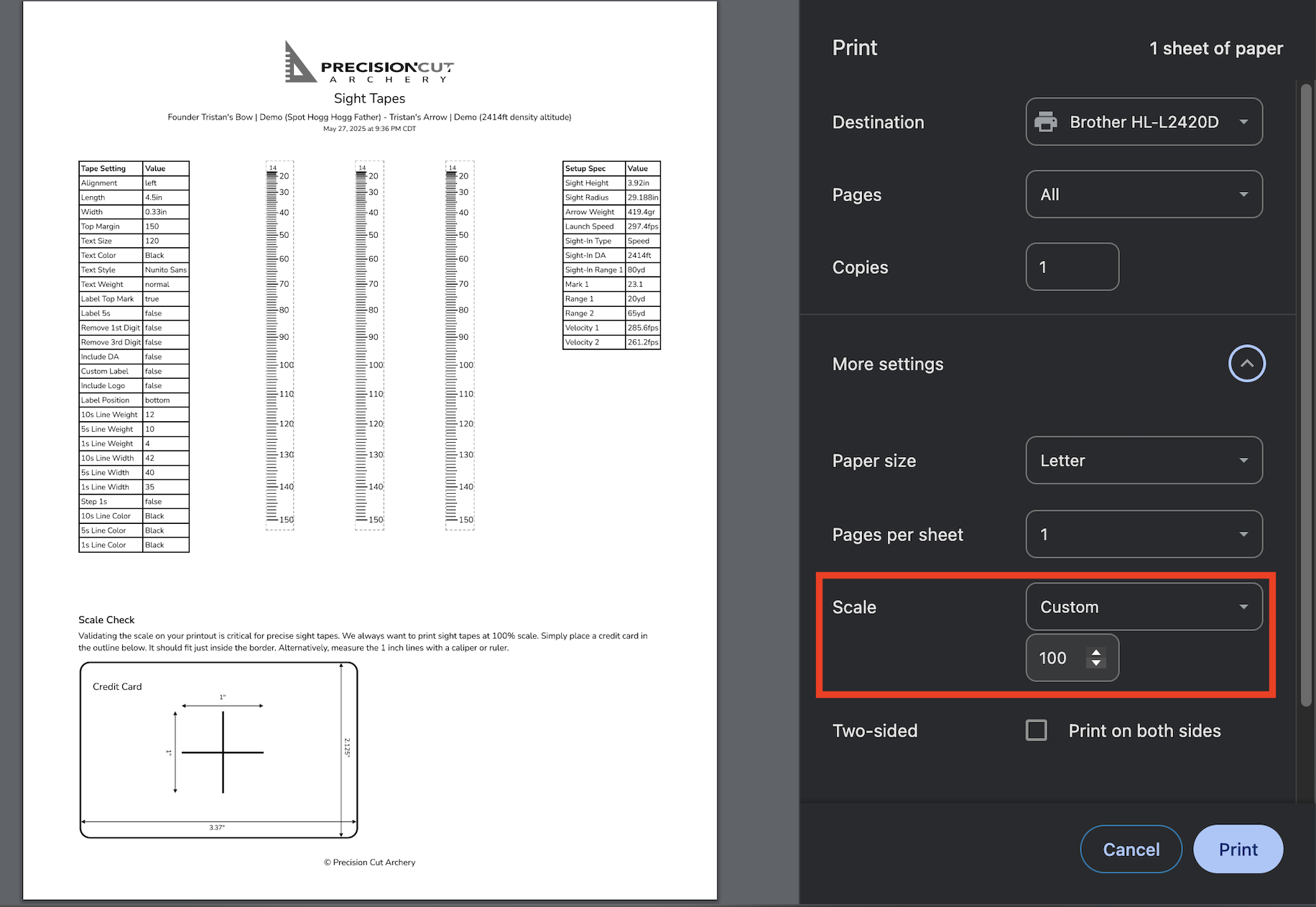
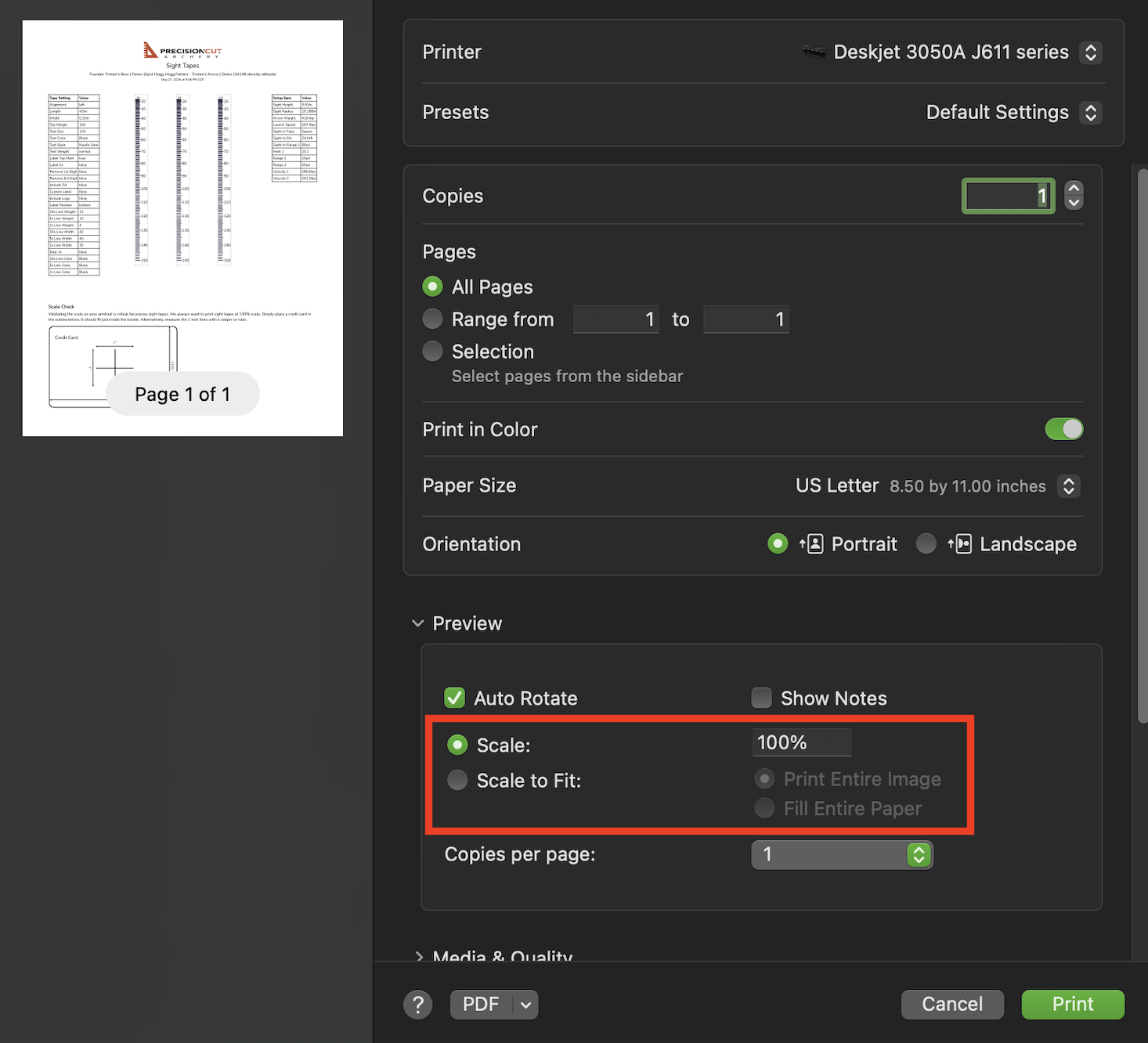
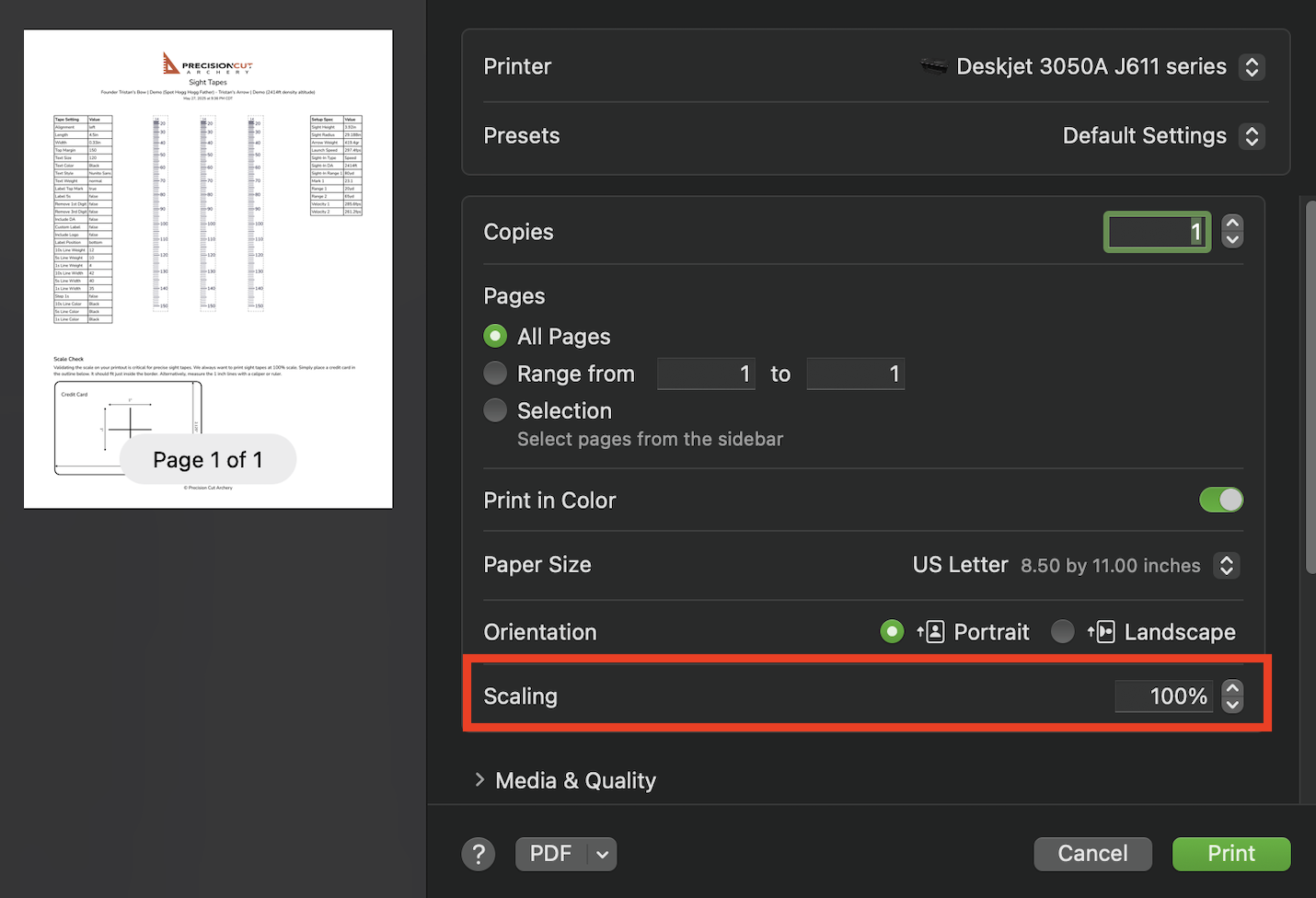
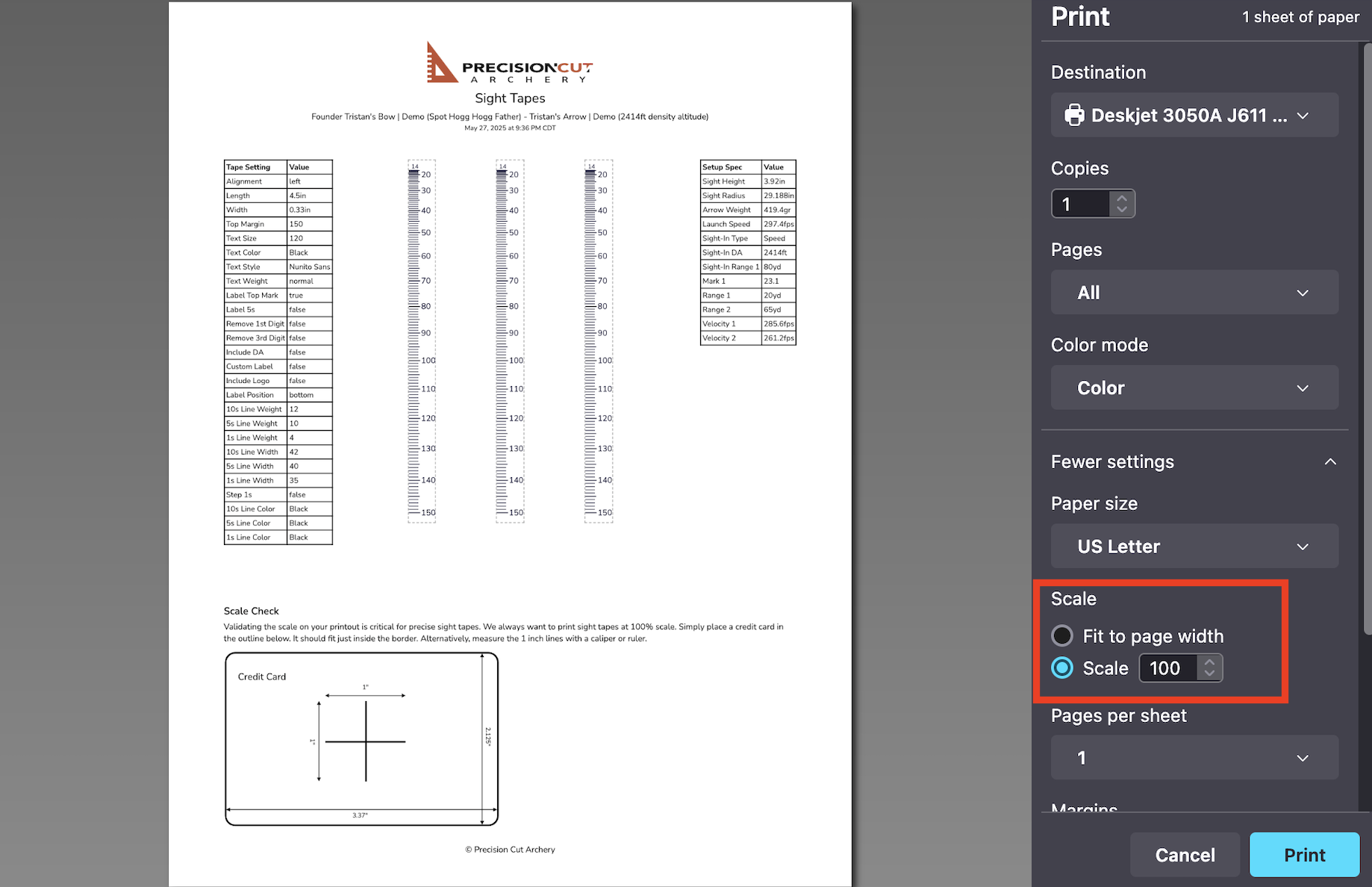
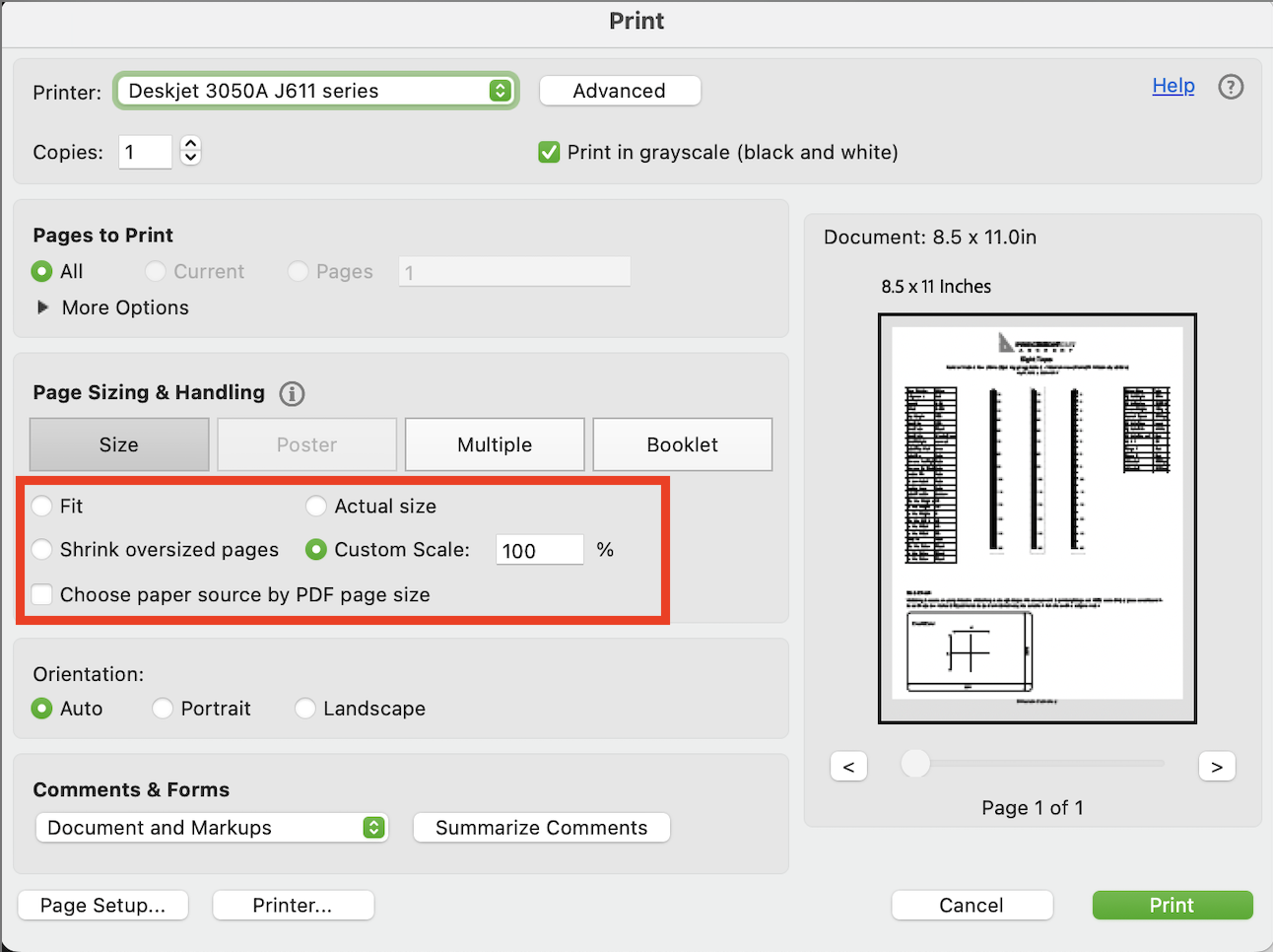
We always want to make sure to set a custom scale of 100% while printing, and make sure it is not set to 'scale-to-fit' or 'fit-to-page'.
This guide is for printing our PDF documents with a normal desktop printer. If you're working with our mobile app and Label Link, see our Label Link page for more information.
Make Sure It's Right
On each standard printout, you will see a Scale Check section that looks like this:
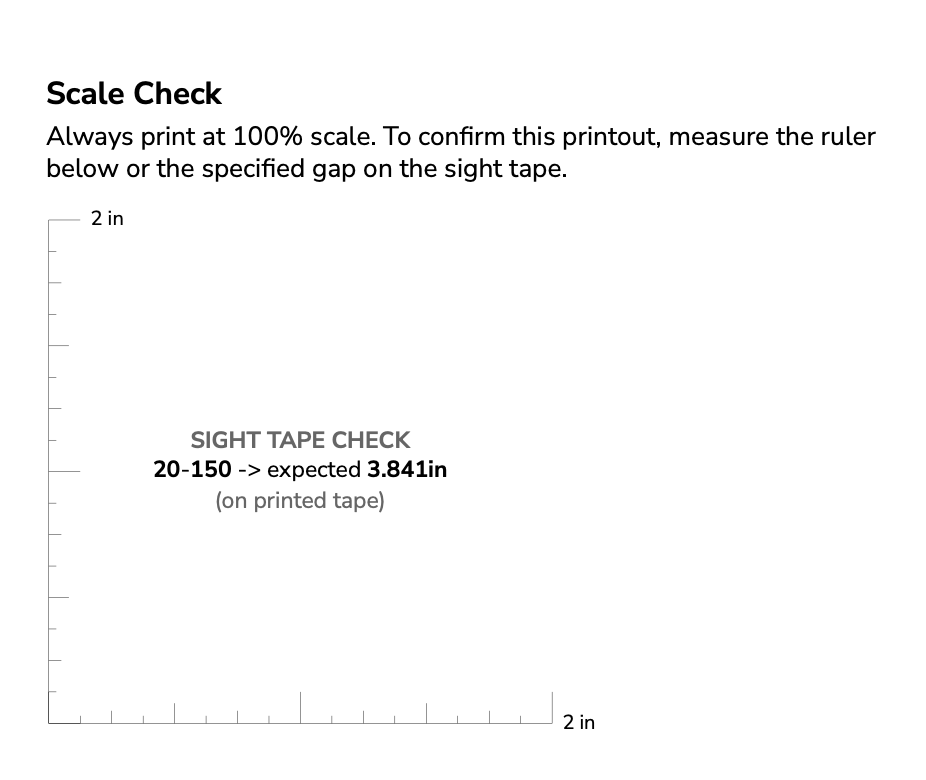
There are two main ways to verify the scale:
-
Measure the crosshair with a ruler, tape measure, or calipers.
-
Measure the gap on the tape itself with calipers. In this example, the gap between the 20 yard mark and the 150 yard mark should measure exactly 3.841 inches.
If these are correct, then your sight tape is printed perfectly at the size we intended. Note you really only need to check one of these.
Tip
If you plan to print your tape on expensive label paper, we recommend first printing a 'Default' sight tapes page on normal printer paper to ensure the scaling is correct.
Then, use the Custom Position printing method to print a single tape on the label paper. This way, you can fit many tapes on a single sheet of label paper over time.
How to Specify 100% Scale
The exact steps will vary depending on the PDF application you are using. Here are some examples:
Google Chrome:
Preview:
Safari:
Firefox:
Adobe Acrobat Reader:
I don't see this option when printing from my phone!
This is a common issue. Phones usually do not allow you to set a custom scale when printing.
Some printers seem to print documents at 100% scale by default, and some do not.
If yours does not, see this section for a solution!
Troubleshooting
99.9% of the time, printing at a custom scale of 100% produces tapes that are sized exactly right on the printout.
However, every now and then we see something weird.
Here are a couple of things to try:
-
Try printing from a different PDF application
-
Poke around your printer's settings to see if there are any extra 'scaling' settings or options
-
Try a different printer
-
Try a different computer
-
Try updating your printer's firmware
-
Try updating your printer's drivers installed on your computer
-
See below for a solution!
No matter what I do the scale is not correct!
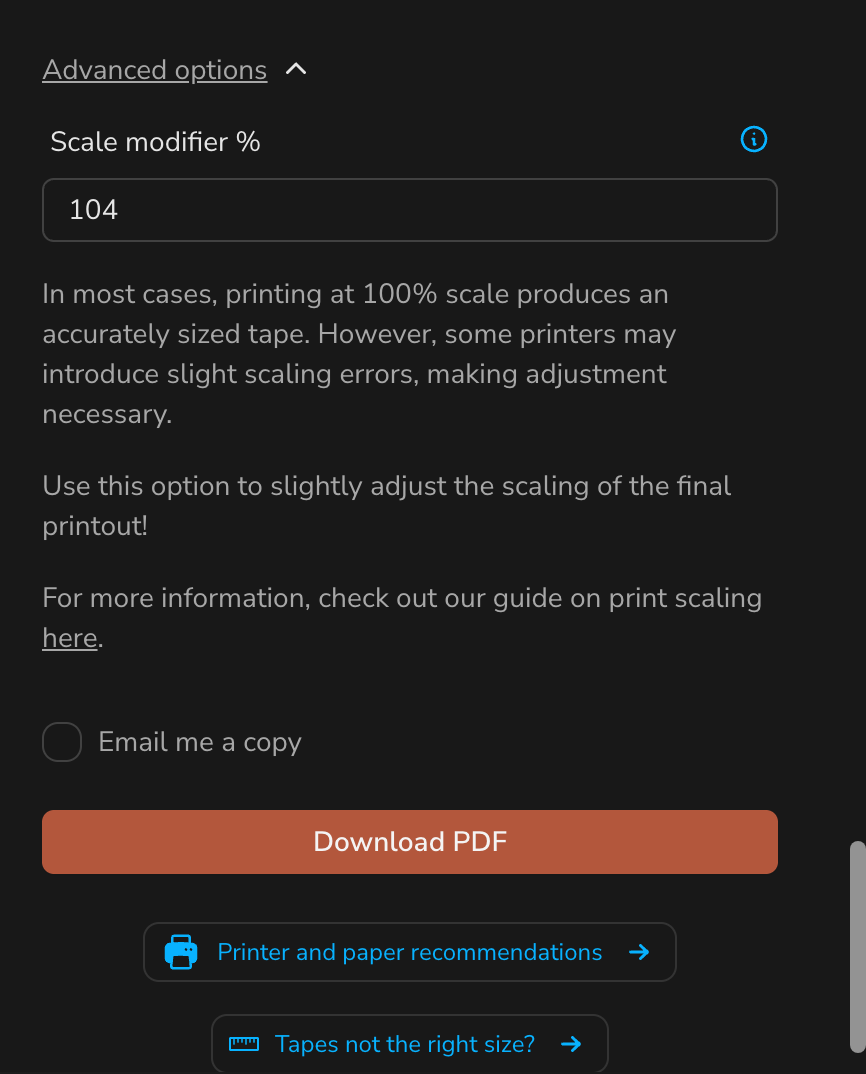
We have an option to slightly adjust the scaling of our PDF documents. This is also helpful when printing from a phone or tablet, as they often do not allow you to set a custom scale when printing.
Click on the "Advanced options" button on the print form.
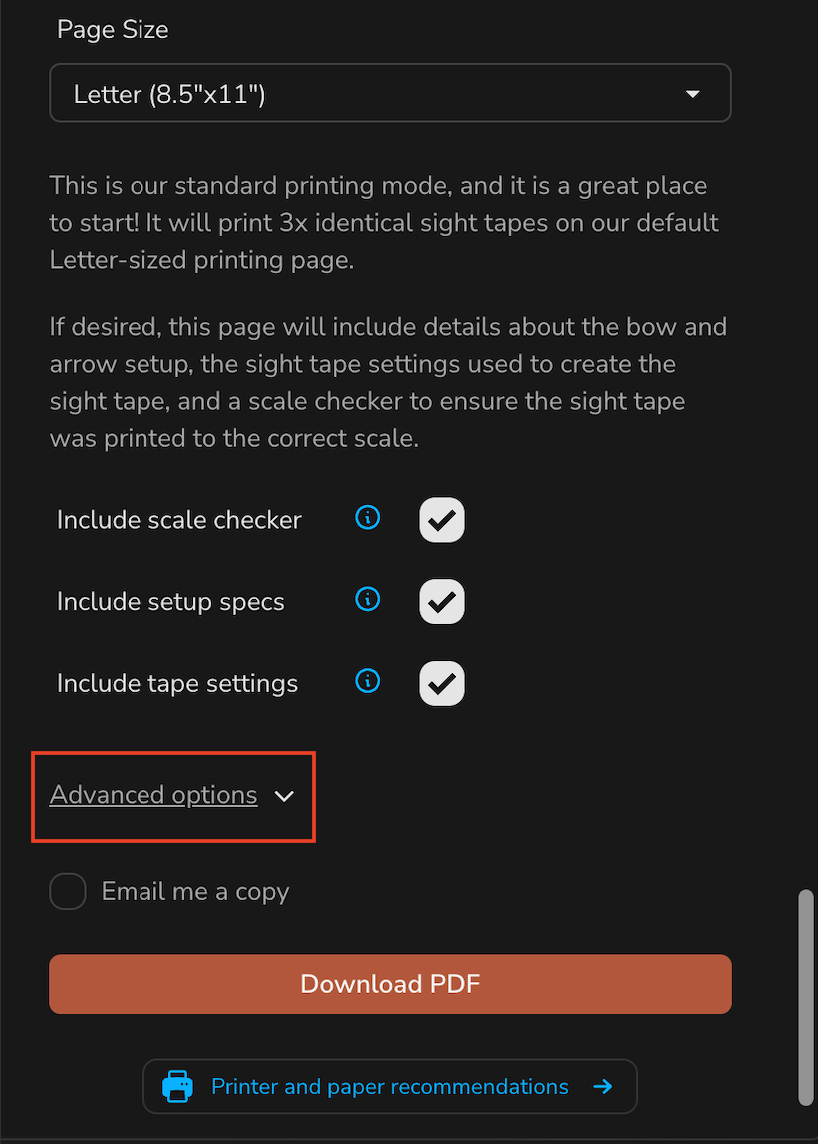
Here you can enter a scale modifier percentage. Values between 85 and 115 are accepted.
- Entering 98% will make the printout 2% smaller.
- Entering 102% will make the printout 2% larger.
For example, let's say the 1" lines on the scale checker are measuring 0.965". You'd enter 103.5% in the scale modifier to make the PDF document 3.5% larger on the next printout.