# Sight Marks
## Overview
This section will guide you through the process of creating sight marks for your bow. We'll also discuss the various options at your disposal and offer troubleshooting tips for common issues.
Sight marks are predominately used in target archery, so if you're a bow hunter without a target sight with a built in scale / clicks, this section may not be for you.
## What are Target Sight Marks?
Sight marks are predominately used in target archery, so if you're a bow hunter without a target sight with a built in scale / clicks, this section may not be for you!
Paige Pearce has an excellent video going over how to use target sight marks [here](https://youtu.be/VuZxIJ8zAXg?si=M8gmYY8Fy_P7upnL).
(This is an older video featuring one of our competitors, so ignore that part... 😅)
## Prerequisites
Before creating sight marks, you'll need to have completed the following:
- [Add your bow](/documentation/tutorials-and-guides/add-bow/)
- [Add your arrow](/documentation/tutorials-and-guides/add-arrow/)
- [Sight-in your setup](/documentation/tutorials-and-guides/sight-in/)
## Creating Sight Marks
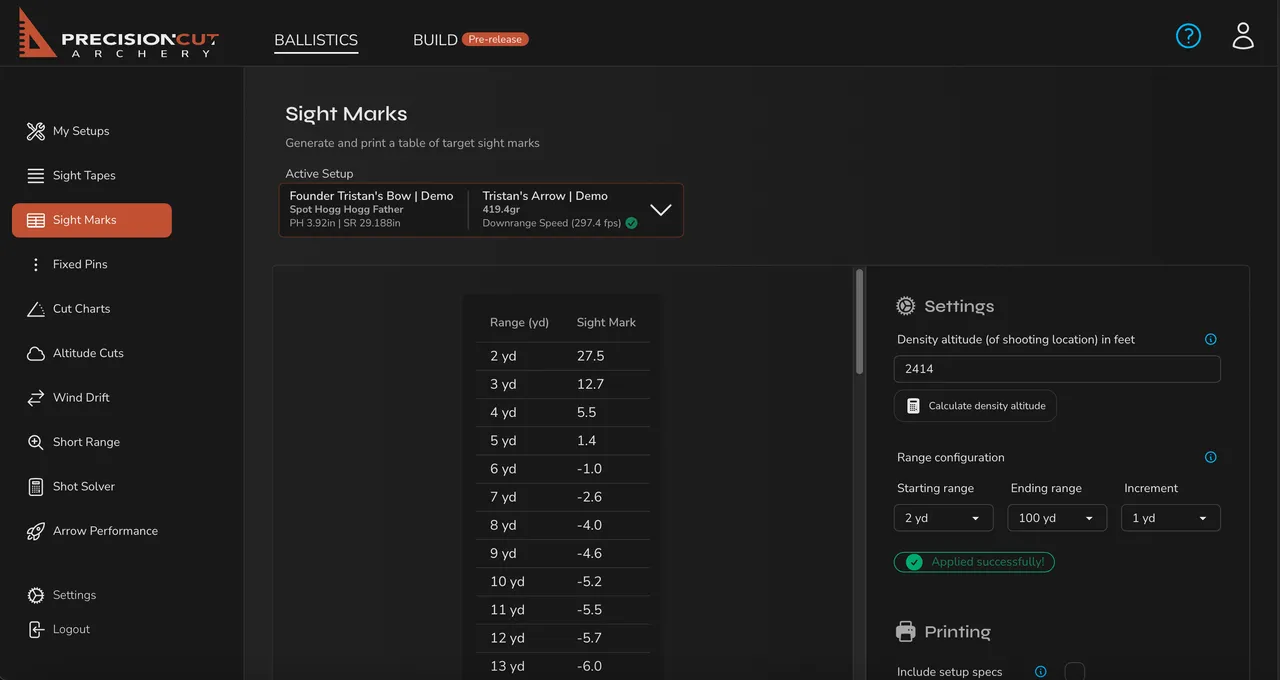
Start by navigating to the **Sight Marks** page within the application.
You can modify the Active Setup at the top of the page.
> **Note**
>
> In order for sight marks to be computed, the setup's sight must be a target sight with a built-in scale / clicks, and marks must have been supplied during the sight-in process.
>
> If these requirements are not met, the sight marks on this page will be computed in inches.
### Target Sight Mark Formatting
Marks should be supplied in the format of `.`. Most commonly, `turns` is determined from the sight scale on the side of the sight, and `clicks` are determined from the micro-adjust knob.
> **Note**
>
> Some sight scales, such as Shibuya's, are labeled 0, 1,...,9 instead of 0, 10,...,90. In this case, to determine the `turns` of a sight mark, simply multiply the reading from the scale by 10. For example, 8.4 on the scale with a click reading of 0.45 on the elevation knob becomes 84.45 when inputted to the program.
**10 Click Sights**
Full rotation of the click nob: 0.1, 0.2, 0.3, 0.4, 0.5, 0.6, 0.7, 0.8, 0.9, 0.0
**20 Click Sights (Except CBE)**
Full rotation of the click nob: 0.05, 0.10, 0.15, 0.20, 0.25, 0.30,..., 0.70, 0.75, 0.80, 0.85, 0.90, 0.95, 0.00
**20 Click CBE Sights (Axis and Vertex Elevate)**
Full rotation of the click nob: 0.01, 0.02, 0.03, 0.04, 0.05,..., 0.14, 0.15, 0.16, 0.17, 0.18, 0.19, 0.00
**30 Click Sights (CBE Vertex Target)**
Full rotation of the click nob: 0.01, 0.02, 0.03, 0.04, 0.05,..., 0.29, 0.00
**Spot Hogg**
Full rotation of the click nob: 0.1, 0.2, 0.3, 0.4, 0.5, 0.6, 0.7, 0.0
**B3 Exact Q2 Target**
Full rotation of the click nob: 0.01, 0.02, 0.03, 0.04, 0.05, 0.06,..., 0.27, 0.28, 0.29, 0.30, 0.00
**B3 Exact Q2 3D**
Full rotation of the click nob: 0.01, 0.02, 0.03, 0.04, 0.05, 0.06,..., 0.45, 0.46, 0.47, 0.48, 0.49, 0.00
*Note that the click labeled X.50 on the B3 Exact Q2 3D should be entered in the program as X.00.*
### Configuring the Marks
#### Density Altitude
This is the density altitude the sight marks will be computed for. This is useful if traveling and you'd like to compute the sight marks for the destination's density altitude.
Read more about density altitude [here](/documentation/tutorials-and-guides/feature-walkthroughs/density-altitude/).
#### Range Configuration
- **Starting range** - The closest range on the sight marks table.
- **Ending range** - The farthest range on the sight marks table.
- **Increment** - The increment between each range on the sight marks table.
### Printing the Marks
Once configured to your liking, you can download the sight marks as a printable PDF document.