# Epson LW-C610PX Label Printer for Sight Tapes
> **Legacy workflow: use Label Link instead**
>
> This page covers the old image-based workflow: download a pre-scaled PNG from the PCA web app, then size it manually in the manufacturer's app. It has been **superseded by [Label Link](/documentation/tutorials-and-guides/feature-walkthroughs/label-link/)**, which prints sight tapes directly from the PCA **mobile app** over Bluetooth with automatic feed calibration.
>
> We still support this workflow in the web app for now, but we no longer recommend it. Scaling is far more reliable and the workflow is much faster with Label Link.
## Overview
This section will guide you through the process of printing a sight tape with the Epson LW-C610PX label printer. This is a fairly high end, higher resolution label printer option for printing sight tapes in the field.
> **Warning**
>
> We've noticed some scaling inconsistencies with the latest version of the Epson Label Editor Mobile application. We are currently investigating the issue and will provide a solution as soon as possible.
## ⚠ Some Words of Warning ⚠
Label printers like the Epson LW-C610PX work with image files. Image files do not have robust scaling built into them like PDF files do. As such, sight tape scaling can be a bit finicky with this type of printer.
We've sized our image file to work exactly right with the Epson LabelWorks 212BWPX labels and the Epson Label Editor Mobile application. However, as always, it's a good idea to verify the scale of the printout every time with this sort of printer. We detail how to do this below.
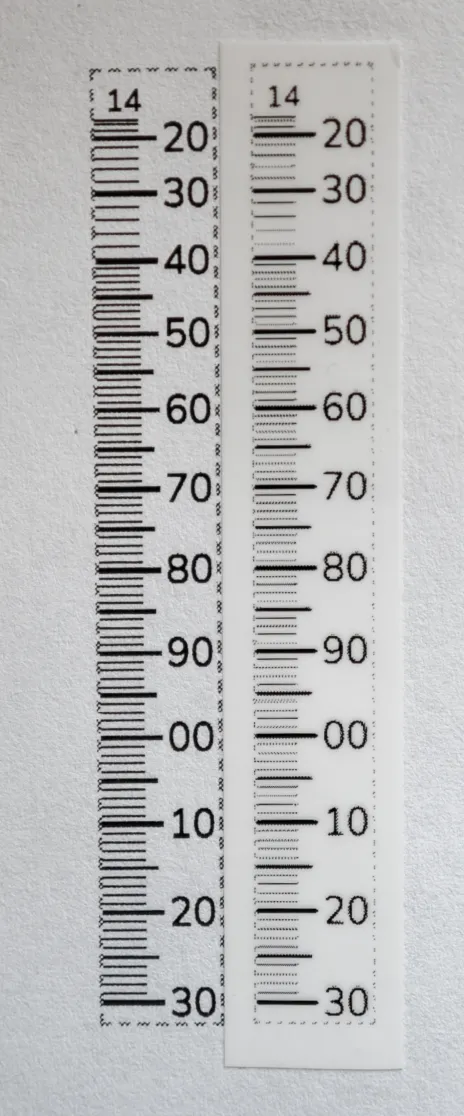
The resolution of this printer is 360DPI. While not as high as a desktop printer, it is higher than most label printers and produces tapes of reasonable quality.
For more information on printers, check out [this page](/documentation/tutorials-and-guides/feature-walkthroughs/printers/).
Here is an example of a printout from the Epson LW-C610PX vs. a desktop printer.
## What You'll Need
- [Epson LW-C610PX Label Printer](https://www.amazon.com/LABELWORKS-LW-C610PX-BLK-Premium-Portable-Bluetooth/dp/B0D9HRGKT1/ref=sr_1_4?crid=1UGXJ7222VWHW&dib=eyJ2IjoiMSJ9.IPiUfoBAqrOWxzBZjhYfyh9SZgONM-8xxxPBOork9rVKcucVGG0A6vOXtuJOVwJT75-BO5iqr-UQGTYWDT3dZK9CYxejbsIy1WTcwuQgRpjdzKXTYx8-L-Sy3kxzc2D8SDxihPqyiXQrwt7aOUDZp33mAoXZNas3gja4-h7hCRBuXSYVc4d0p-1zYOQgU07Yr9Q0D7mWjq4H04hHiW7zi1EXCT_o5Xp77ClFuxijRwQ.n3QkCUB9PdOG3O_x9OYzZXZ8UJR_z-G_6xieMkfJTIM&dib_tag=se&keywords=Epson%2BLW-C610PX%2BLabel%2BPrinter%2B212BWPX&qid=1756348093&sprefix=epson%2Blw-c610px%2Blabel%2Bprinter%2B212bwpx%2Caps%2C115&sr=8-4&th=1)
- [Epson LabelWorks 212BWPX Labels](https://www.amazon.com/LABELWORKS-212BWPX-Polyester-Tape-Cartridge/dp/B08JS8BSC2/ref=sr_1_3?crid=14NNHBJYGIRN8&dib=eyJ2IjoiMSJ9.EQwsW1jSvr3_Oz60nyxe4XKYkIdLgfWyg1d_cxRDWFKgKzHaWgsDxdiaOY5tT3p_EHRj7jjzD9RpZTHlxisu9w.XBhyCH7tPzlmWZxtSQMQjytJI1rFwW3D2InimeuqxK4&dib_tag=se&keywords=212BWPX&qid=1756348002&s=industrial&sprefix=212bwpx%2Cindustrial%2C136&sr=1-3&th=1)
> **Note**
>
> Different label materials print at slightly different scale with the Epson LW-C610PX. We recommend using the LabelWorks 212BWPX labels for this printer.
## Prerequisites
- [Configure your Sight Tape](/documentation/tutorials-and-guides/feature-walkthroughs/sight-tape/)
- Download the Epson Label Editor Mobile application from the [Apple App Store](https://apps.apple.com/us/app/epson-label-editor-mobile/id1592425459) or [Google Play Store](https://play.google.com/store/apps/details?id=com.epson.labeleditormobile&hl=en_US). (This is the mobile application for the Epson LW-C610PX.)
## Printing the Tape
### Download and Save the Image File
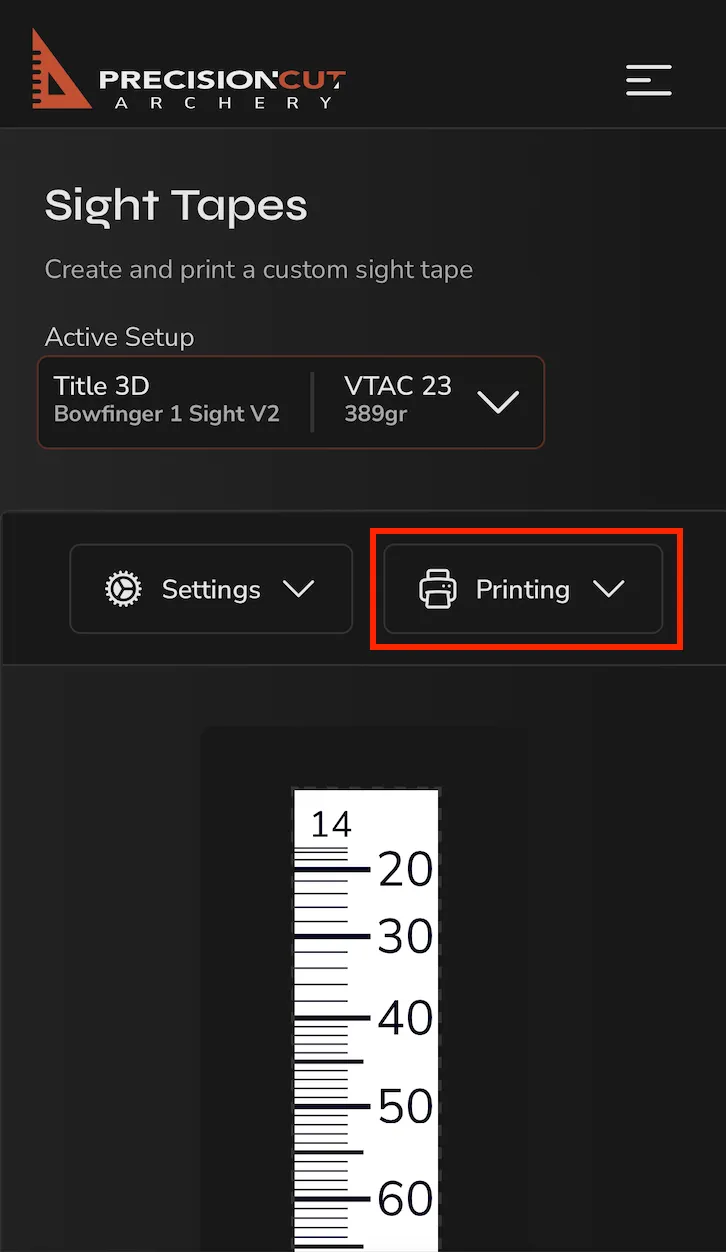
Click on `Printing`.
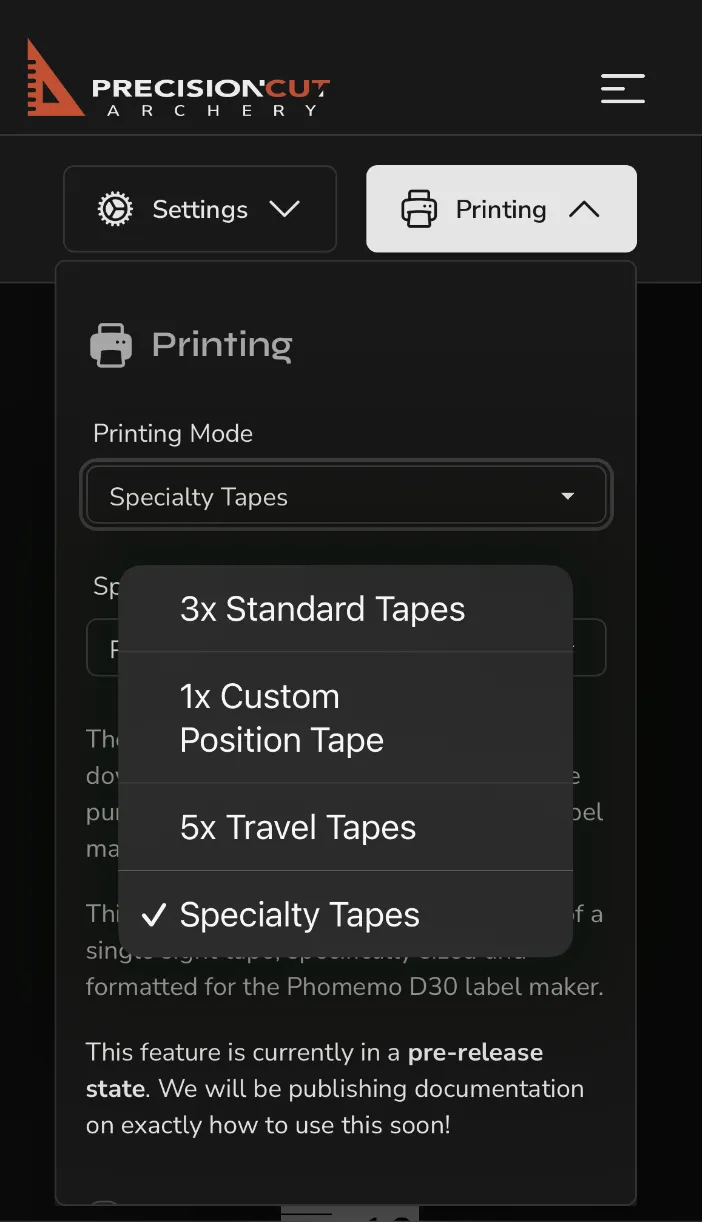
Select `Specialty Tapes` printing mode.
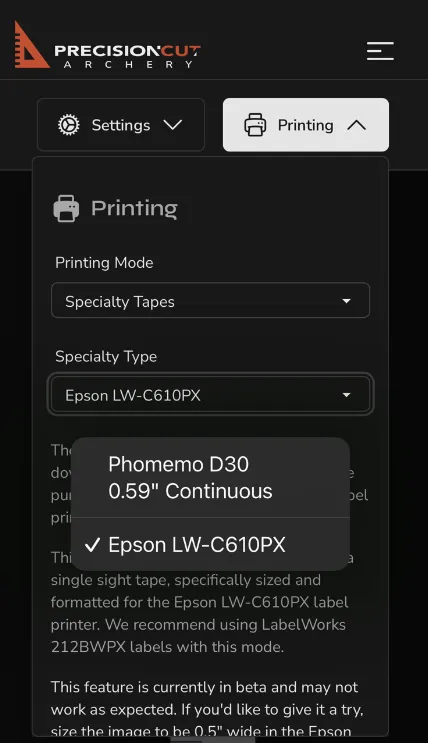
Select `Epson LW-C610PX` under `Specialty Type`, and click `Download Image`.
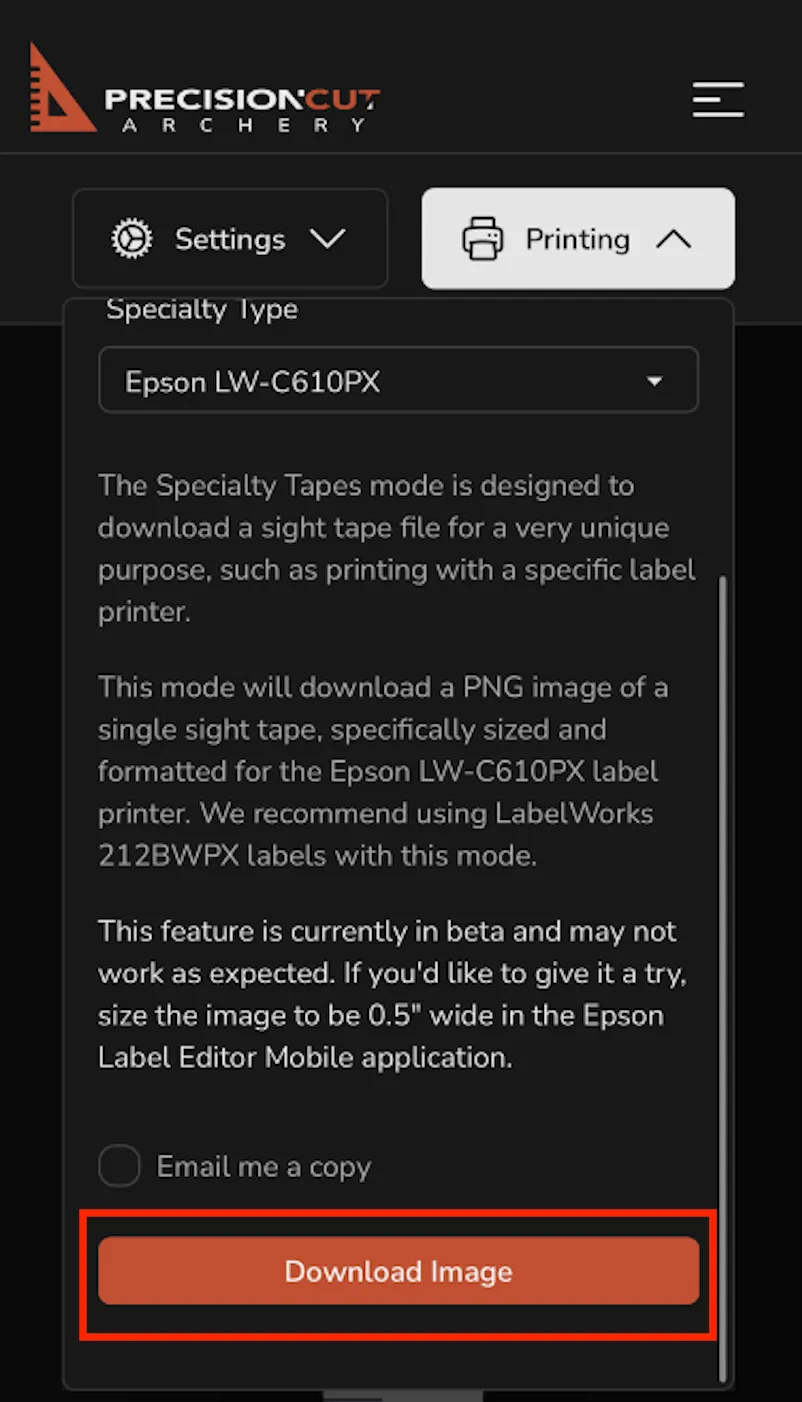
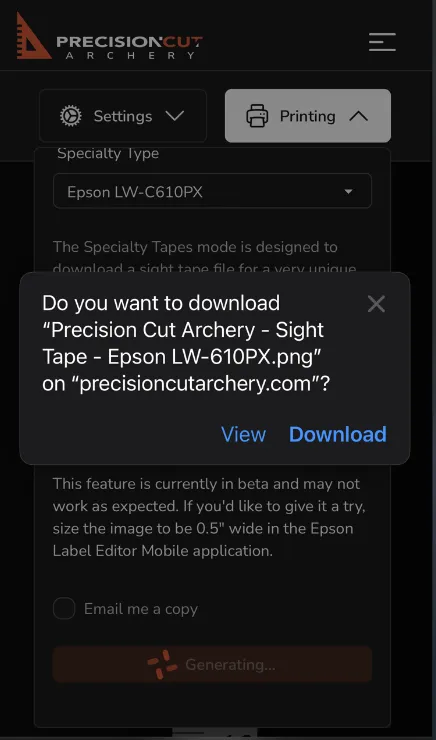
Click `View`.
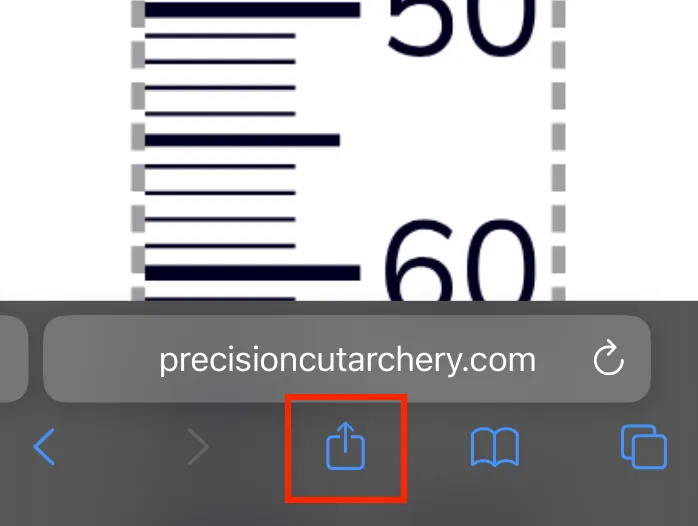
Click the share button.
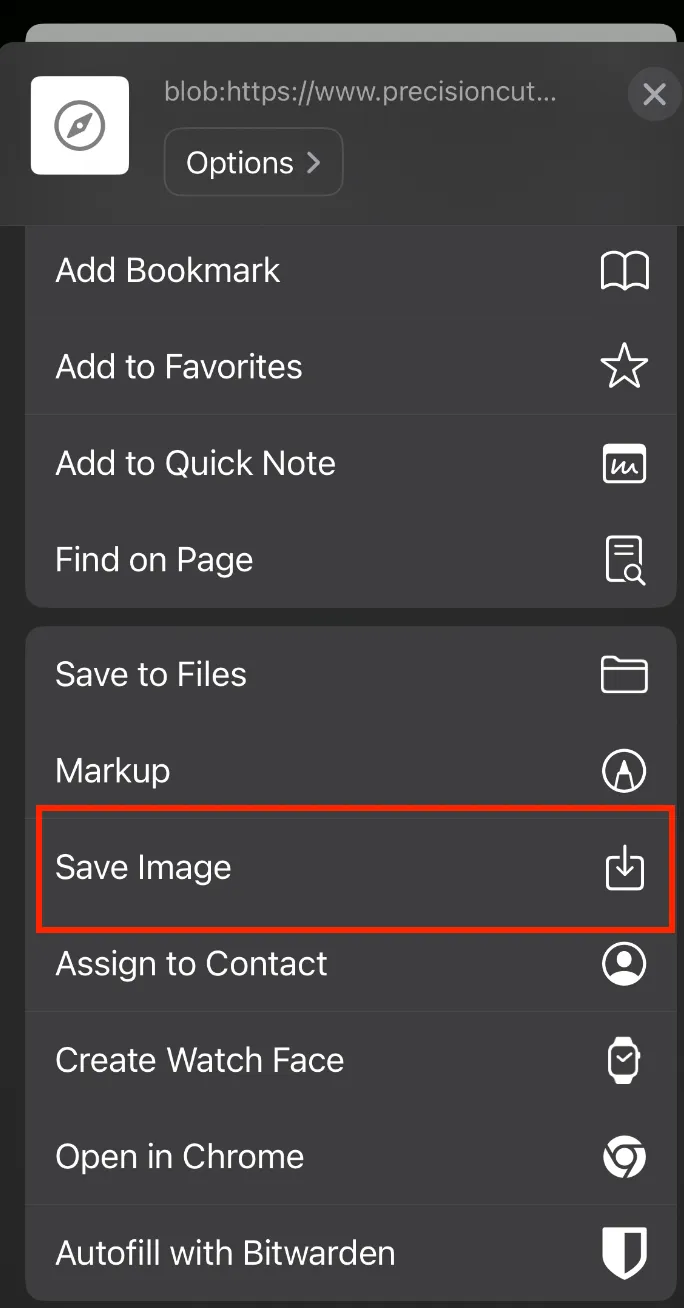
Select `Save Image`. This saves the image to your phone's camera roll.
### Use the Epson Label Editor Mobile Application
Open the Epson Label Editor Mobile application.
Ensure your printer is connected to your phone. You may need to pair it with your phone in your phone's Bluetooth settings.
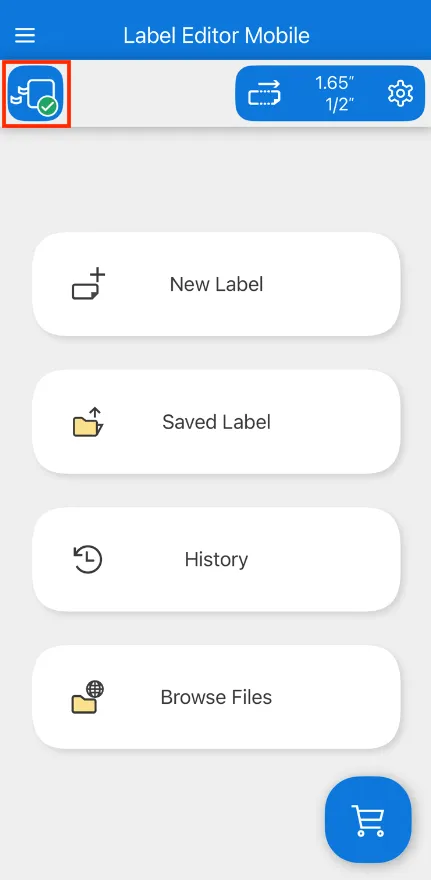
Select `New Label`.
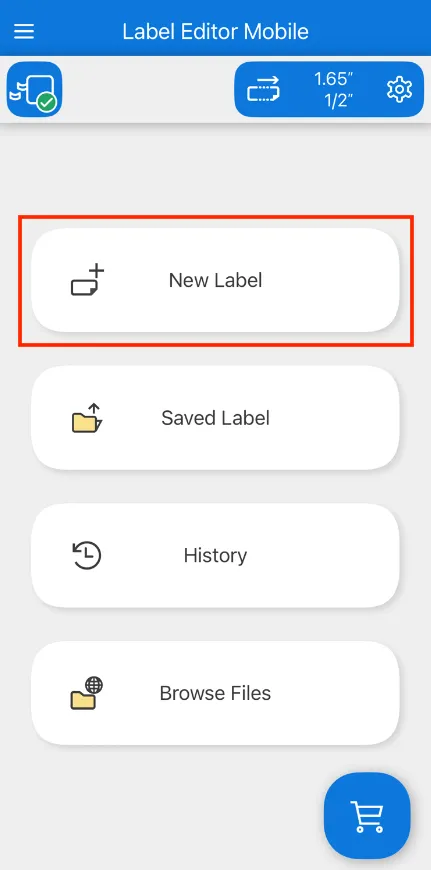
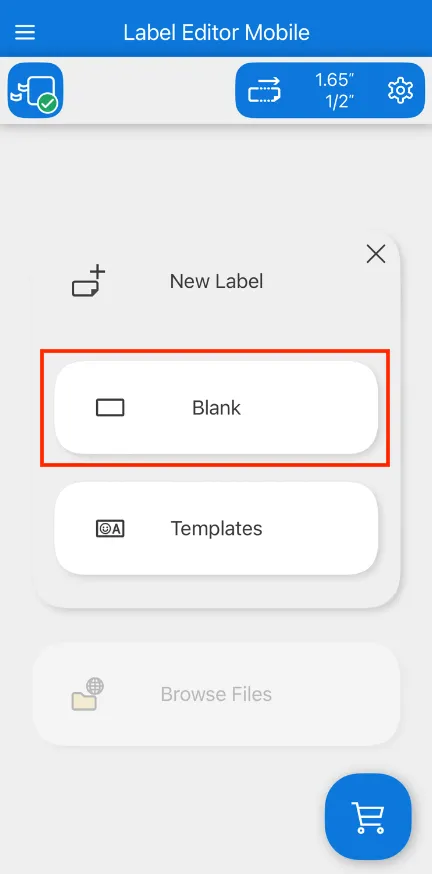
Select `Blank`.
Tap `Image`. Select the sight tape image file you saved to your phone's camera roll. **Do not crop the image at all.**
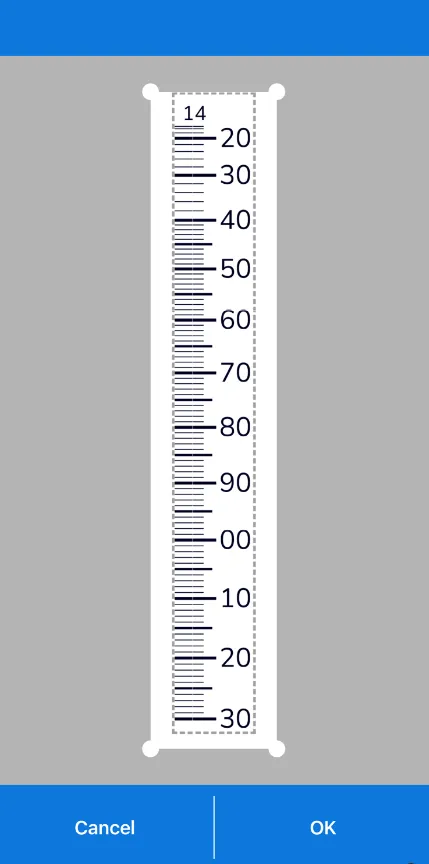
Select `Error diff`.
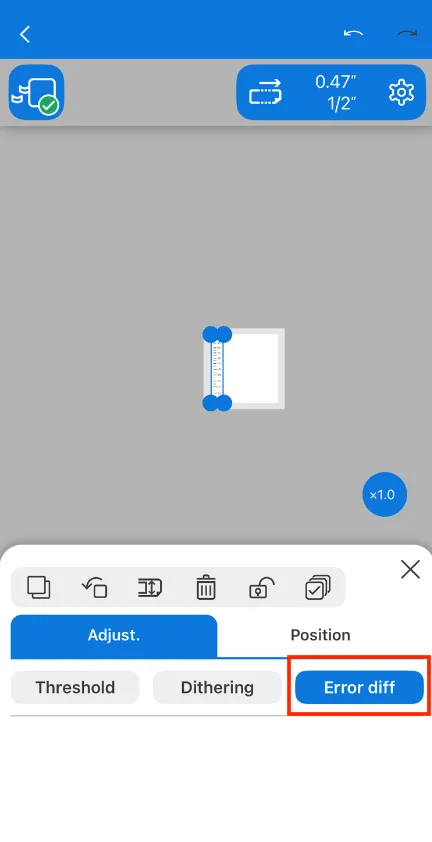
Tap the `Rotate` button until the sight tape is in the correct orientation (horizontal).
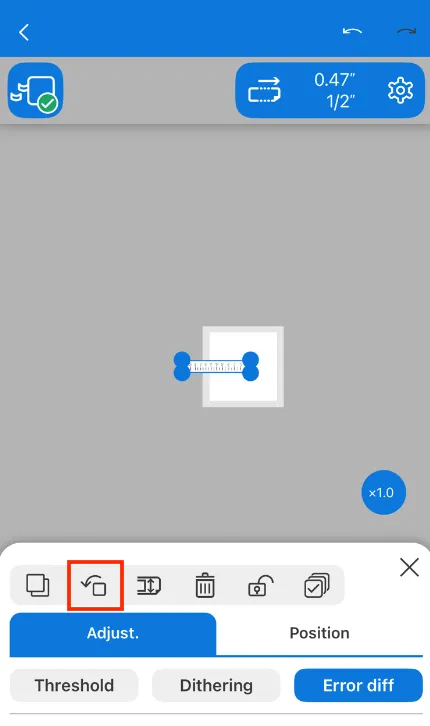
Once the tape is rotated correctly, zoom in and expand the tape until it measures exactly 0.5" wide on the scale in their application. This is what we have our tapes sized for.
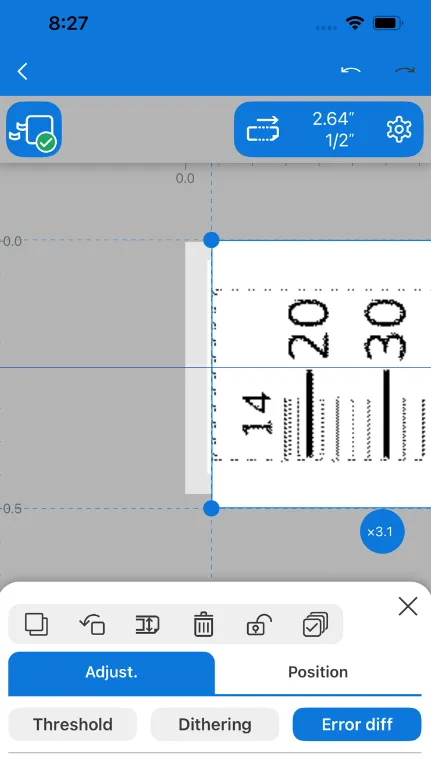
Once the tape is sized correctly, place it on the label.
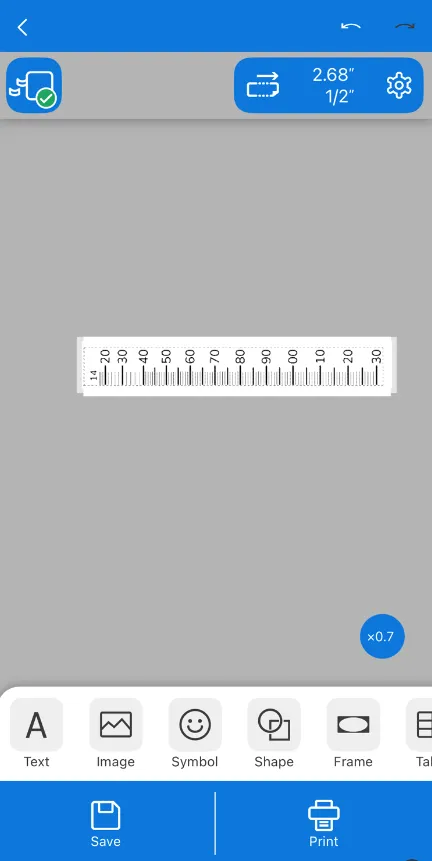
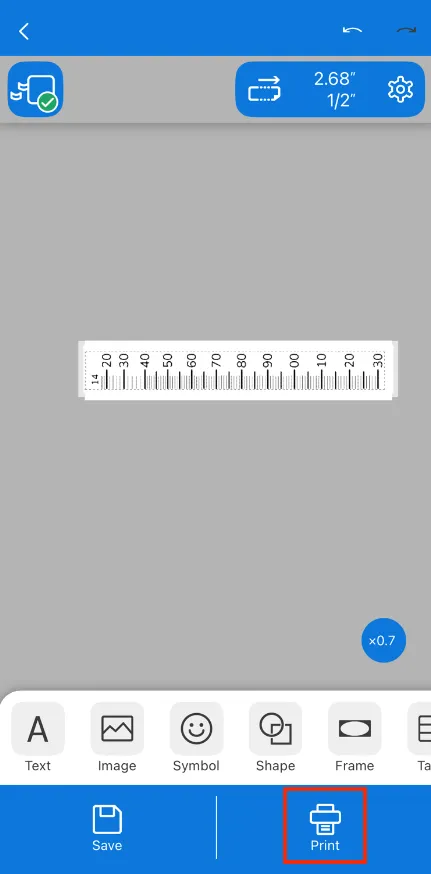
Tap the `Print` button in the bottom-right corner.
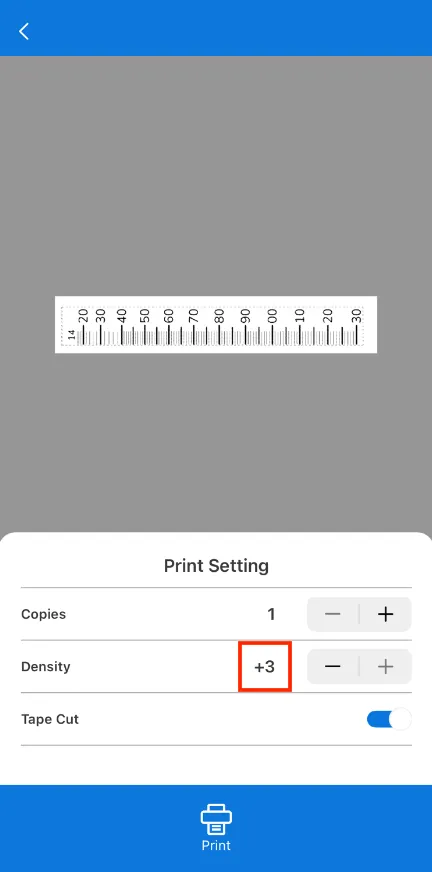
We've found the print quality to be best on our printer with a `Density` of `+3`. Tap `Print`.
## A Note on Long Tapes
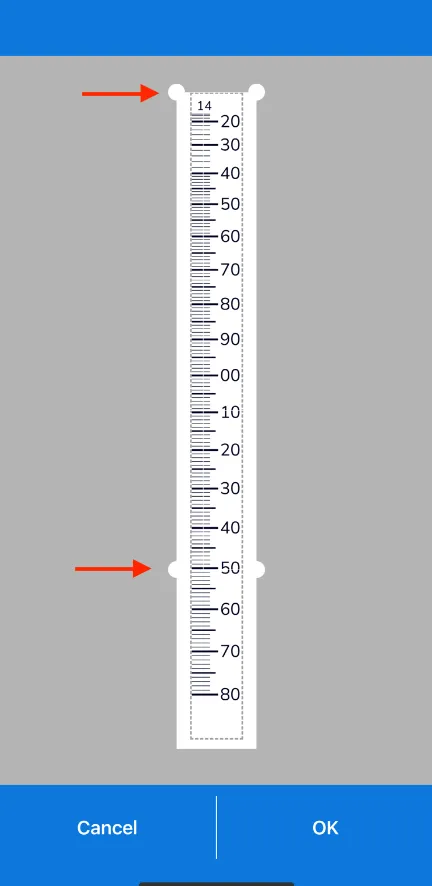
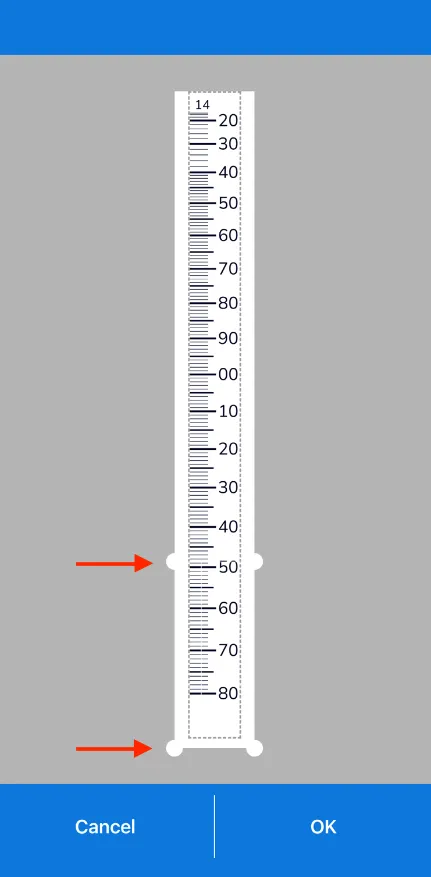
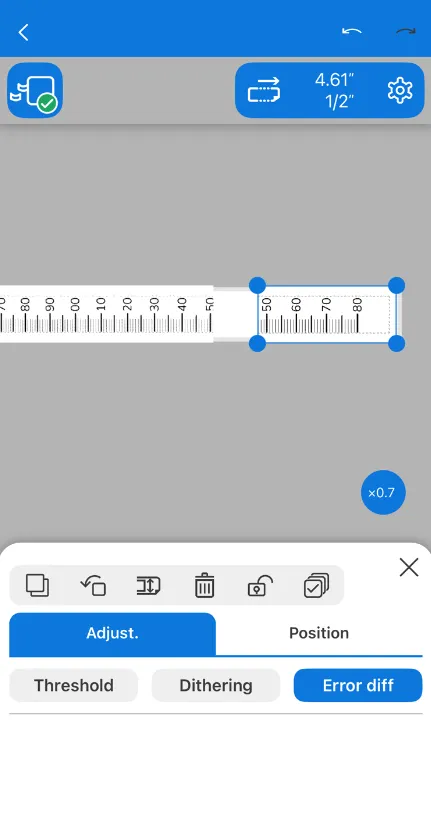
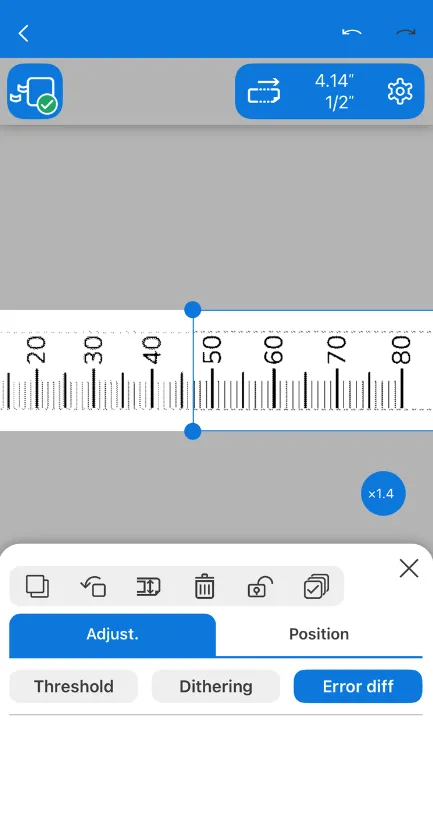
If your tape is over about 4 inches long, the Epson Label Editor Mobile application will not allow you to make it large enough. You can always crop the image vertically when importing it into the mobile application and piece it together in two pieces on the label in the app or after printing.
Simply size each piece of the tape to be 0.5".
## Verifying the Print Scale
Once your tape is printed, it's crucial to verify its printed to the correct scale.
**Tape Length**
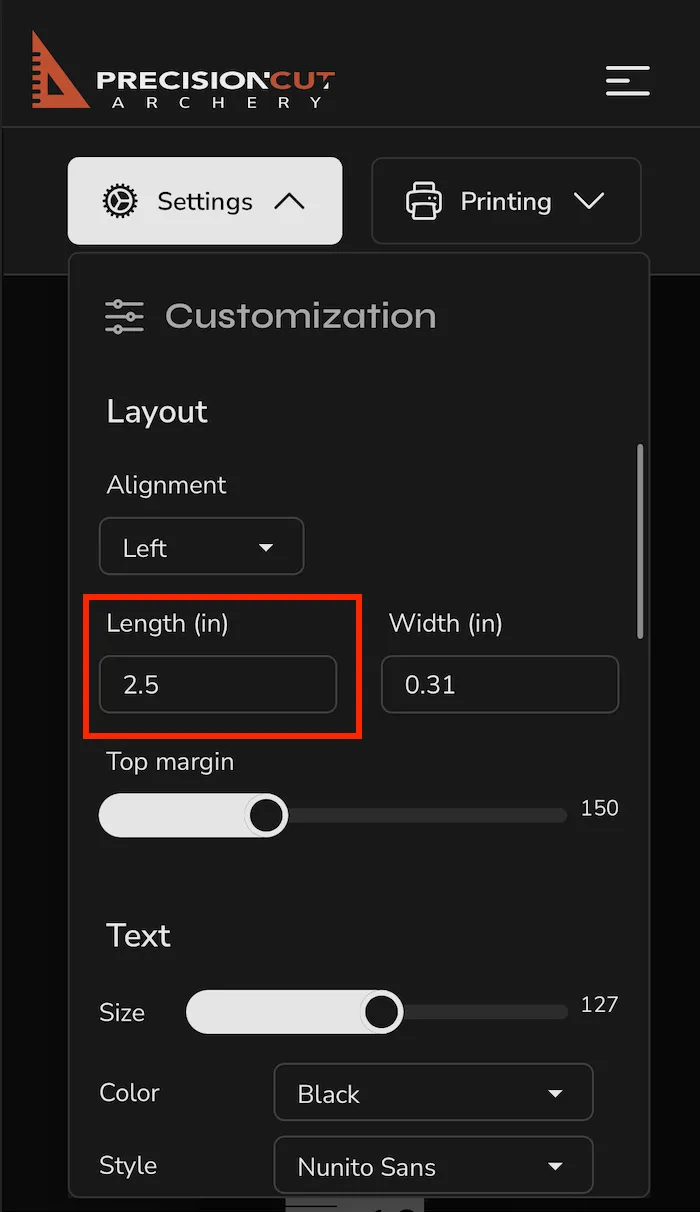
This is the simplest way to verify the tape is printed to the correct size. When you printed the sight tape, a length was selected.
Let's say your tape length is set to 2.5".
That printed tape should measure 2.5" from *inside-border to inside-border*.
> **Note**
>
> Scaling might not be *perfect* with the Epson LW-C610PX, but it should be very, very close. If it's not quite right, you can tweak the sizing in the Epson app and print again until it's right!